

Documentation Index
Fetch the complete documentation index at: https://docs.seal.run/llms.txt
Use this file to discover all available pages before exploring further.
Field types
Seal supports many different field types for storing various kinds of data. Fields can be added to any entity via theFields tab in the sidebar.
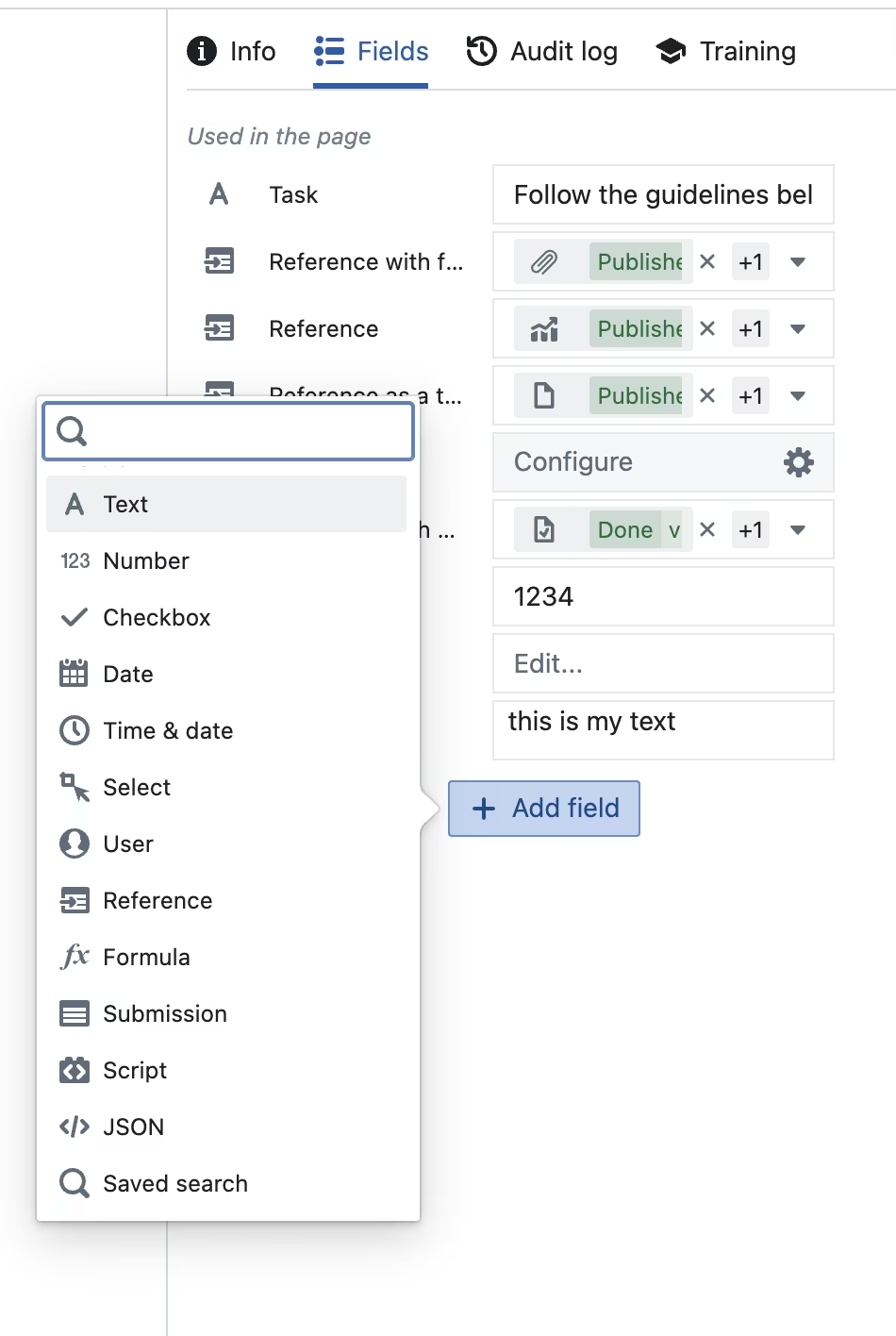
| Field | Notes |
|---|---|
| Text | Single or multi-line. Multi-line text fields support markdown text formatting. |
| Number | Simple number input |
| Checkbox | Boolean |
| Date | Date input, no timezone |
| Time & date | Time & date input, option to add timezone information |
| Select | Create custom options for users to select between. Can be configured to allow users to select one or be able to select multiple. |
| User | Select a User from Seal. Can be configured to allow users to select one or multiple. |
| Reference | Reference an entity within Seal. Data can be looked up through this link. Can be configured to allow users to select one or multiple entities. |
| Formula | Enable you to perform calculations across an entity’s fields. Learn more below. |
| Automation | Link to an Automation entity, then that automation runs in the context of the entity you are in — scoped to that entity. |
| JSON | Stores JSON as a string. |
| Saved search | View query results as a table within the entity. Learn more below. |
Changing field type
Once a field is defined, its data type can be changed in place for the six primitive types: Text, Number, Checkbox, Date, Time & date, and JSON. The action is available from the three-dot menu next to any primitive field in the Fields tab.Changing field type is a release-preview feature (2026 May II). It needs to
be enabled in Settings → Release previews before the action appears.
Where it’s available
- Type entities — change the org-default field definition. Existing templates and instances already created from this type keep their own deep-copied definitions; only future templates pick up the new data type.
- Template entities — publishes a new template version. Existing instances pinned to the previous version are unaffected. New instances created from the new version get the new data type.
- Instance entities — when strict mode is off. The change is recorded as a change set on the instance and does not propagate back to the template. Both inherited fields and fields added directly on the instance can be re-typed.
What happens to the existing value
When you change the type, Seal tries to coerce the existing value to the new data type:- Number → Text stringifies the number (
42→"42") - Text → Number parses the string if it’s a finite number, otherwise the value is cleared
- Boolean → Number maps to
0/1; the inverse uses non-zero astrue - Date ↔ Time & date reinterprets the same ISO string (date midnights for the up-cast; time stripped for the down-cast)
- Text → Date / Time & date parses if the string is a valid ISO date/datetime, otherwise cleared
- JSON ↔ Text any string that is already valid JSON passes through unchanged; otherwise it’s wrapped as a JSON-encoded string
"abc" → Number) the value is cleared and the modal shows a warning: “Current value cannot be cast to Number and will be cleared.”
Audit trail
Every successful change emits aUPDATE_FIELD_TYPE event into the entity’s audit log with the old type, new type, original value, and any cast error. The change set view shows the type change in the version diff. This is a structural part of the operation — it cannot be silently bypassed.
Attached formulas
If the field has a v2 formula attached, the formula is preserved across the type change. The next time it computes, if the output doesn’t match the new data type, the standard formula-error surface picks it up — same as any other formula type mismatch.What can’t be changed
- Reference, Script, Saved search, User, Select, Formula (legacy), and Step fields cannot have their data type changed via this action — their structural configuration (placeholder columns, entity references, etc.) doesn’t carry across a type swap. The dropdown only lists the six primitive types.
- Fields that are locked with strict mode or owned by a v1 automation are not eligible for type changes.
Live fields
Live fields allow specific fields to remain editable on published entities.Example use case
Consider an inventory management system:- You have entities representing chemicals, each with a “Current Stock Level” field
- These entities need to be published so they can be referenced in work instructions
- But you also need to update the stock level regularly
Making a Field Live
To make a field live:- Open the entity (template or instance)
- Go to the Fields tab in the right sidebar
- Click the three-dot menu on the field you want to make live
- Select “Make field live”
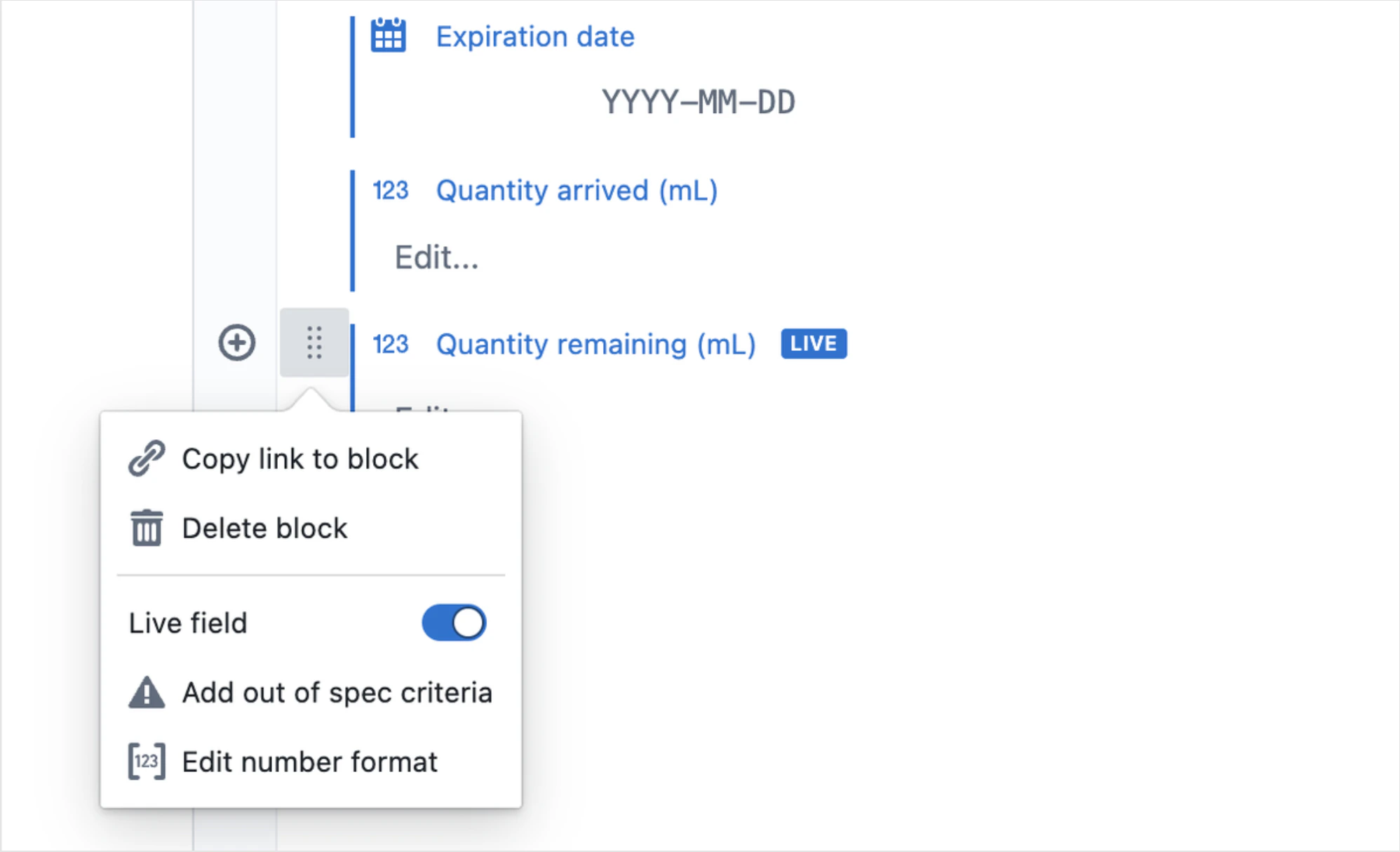
Live fields are indicated with a special badge in the UI.
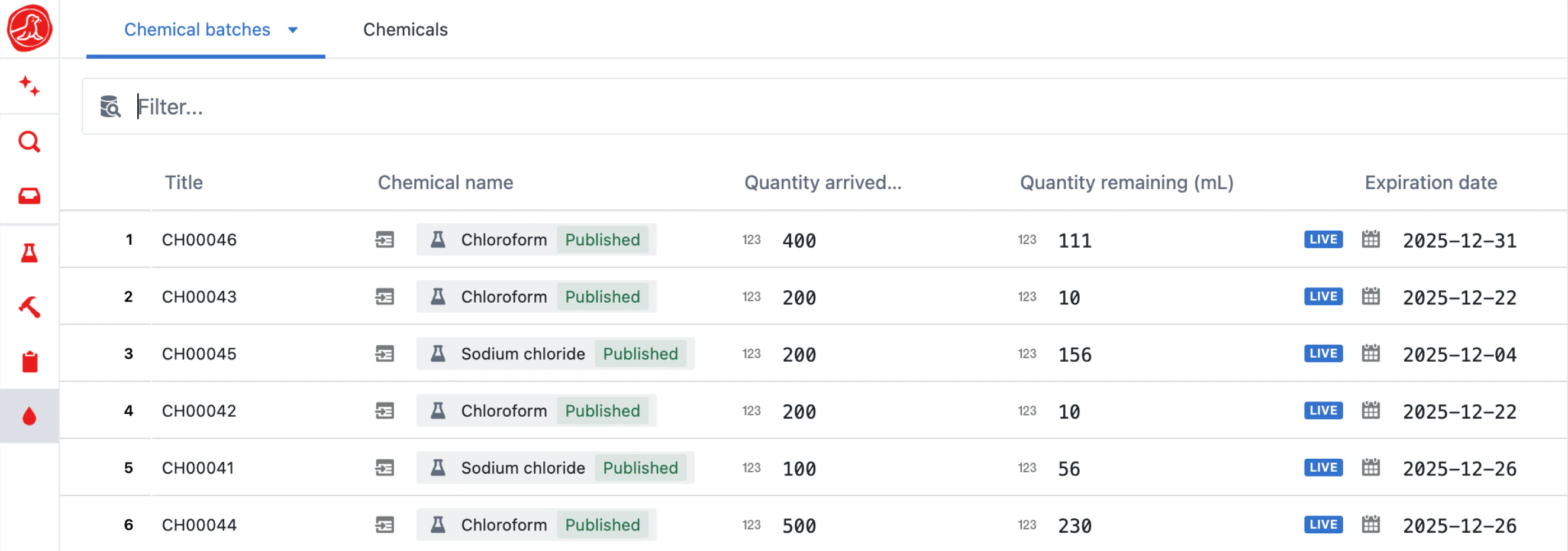
How live fields work
When a field is marked as live on a published entity:- Editing the field value on any version updates it for all versions where that field is live. This includes the field configuration
- Changes to live fields are tracked in the audit log
Live reference fields
When a Reference field is made live, it has special behavior:- You can reference draft entities without blocking publishing
- The draft reference does not need to be in the change set
- When the referenced draft is eventually published, the reference gets pinned to the new version
Live formula fields
This section describes the legacy Formula field type. New formula work should use per-field formulas — they attach to any value-bearing field, react automatically to dependency changes, and replace both legacy formulas and out-of-spec expressions. Existing legacy Formula fields keep working unchanged, but they can no longer be created or edited in place; the Configure field modal opens read-only with a Migrate to v2 formula action — see Migrating legacy formulas.
- Recomputed on every view: The formula recalculates each time the entity is fetched
- References current data: When looking up values from other entities, live formulas always use the current live data, not historical snapshots
- Can reference other live fields: Live formulas can safely reference other live fields on the same entity or external entities when combined with Reference field
Example use case
Consider tracking inventory across multiple locations:- You have a “Chemical” entity with a live “Current Stock Level” field
- You have a “Lab” entity with a live formula that sums stock levels from referenced chemicals
- When stock levels are updated on chemicals, the lab’s total automatically reflects current values
Important: Non-Live Formulas Cannot Reference Live Fields
If a formula field is not marked as live, it cannot reference live fields on published entities. This is because:- Non-live formulas are computed once at publish time and stored
- You’ll see an error: “This formula references a live field. Make this formula field live to resolve this error.”
Formatting fields
Formatting options available to a field depend on the type of data within them. Currently, formatting is available for the following data types:- Number
- Time & date
These options are available in formula fields that return supported data types too!
Text
Text fields can be Multi-line to enable longer paragraphs of content. This can be formatted using markdown. See table below for markdown varieties.| Symbol | Description |
|---|---|
[ ] | Checkbox |
#, ##, ### | Heading 1, heading 2, heading 3 * Note that headers can be in lists, and indented as well. |
`` | Codeblock |
* or _ | Italics |
** | Bold |
__ | Underline |
> | Quoted text |
- | Bulletpoints |
1. | Numbered list |
~~ | Strikethrough |
You can also adjust indentation, for better organisation.
Number
For Number fields, the following formatting options are available:- 0.X: Displays the original number without formatting.
- 0.0: Formats the number to one decimal places.
- 0.00: Formats the number to two decimal places.
- 0.000: Formats the number to three decimal places.
- 0.0000: Formats the number to four decimal places.
- SCI: Displays the number in scientific notation.
- SCI3: Scientific notation with the coefficient rounded to three significant figures.
- Rounded: Rounds the number to the nearest integer
Date / Time & Date fields
Fields can be configured to customize both the format and the timezone. The same configuration can also be applied to formula fields that return a Datetime value. Time & Date field values are stored as UNIX timestamps. Learn more about UNIX timestamps here. You can also set a default datetime format for your whole organisation in Settings.Adjusting format
Users can customize Date/Time & date formats using our presets or by creating custom formats. We support date-fns and Unicode Technical Standard #35 standards. Here are a couple of commonly used format patterns to get you started:| Unit | Pattern | Result Examples |
|---|---|---|
| Calendar year | y | 44, 1, 1900, 2017 |
| yy | 44, 01, 00, 17 | |
| yyyy | 0044, 0001, 1900, 2017 | |
| Month | M | 1, 2, …, 12 |
| MM | 01, 02, …, 12 | |
| MMM | Jan, Feb, …, Dec | |
| MMMM | January, February, …, December | |
| Day of month | d | 1, 2, …, 31 |
| do | 1st, 2nd, …, 31st | |
| dd | 01, 02, …, 31 | |
| AM, PM | a..aa | AM, PM |
| aaa | am, pm | |
| Hour [1-12] | h | 1, 2, …, 11, 12 |
| hh | 01, 02, …, 11, 12 | |
| Hour [0-23] | H | 0, 1, 2, …, 23 |
| HH | 00, 01, 02, …, 23 | |
| Minute | m | 0, 1, …, 59 |
| mm | 00, 01, …, 59 |
Format patterns are case-sensitive.For example,
M stands for month, while m stands for minute. Always double-check the case when creating custom formats to ensure accuracy.Adjusting timezone
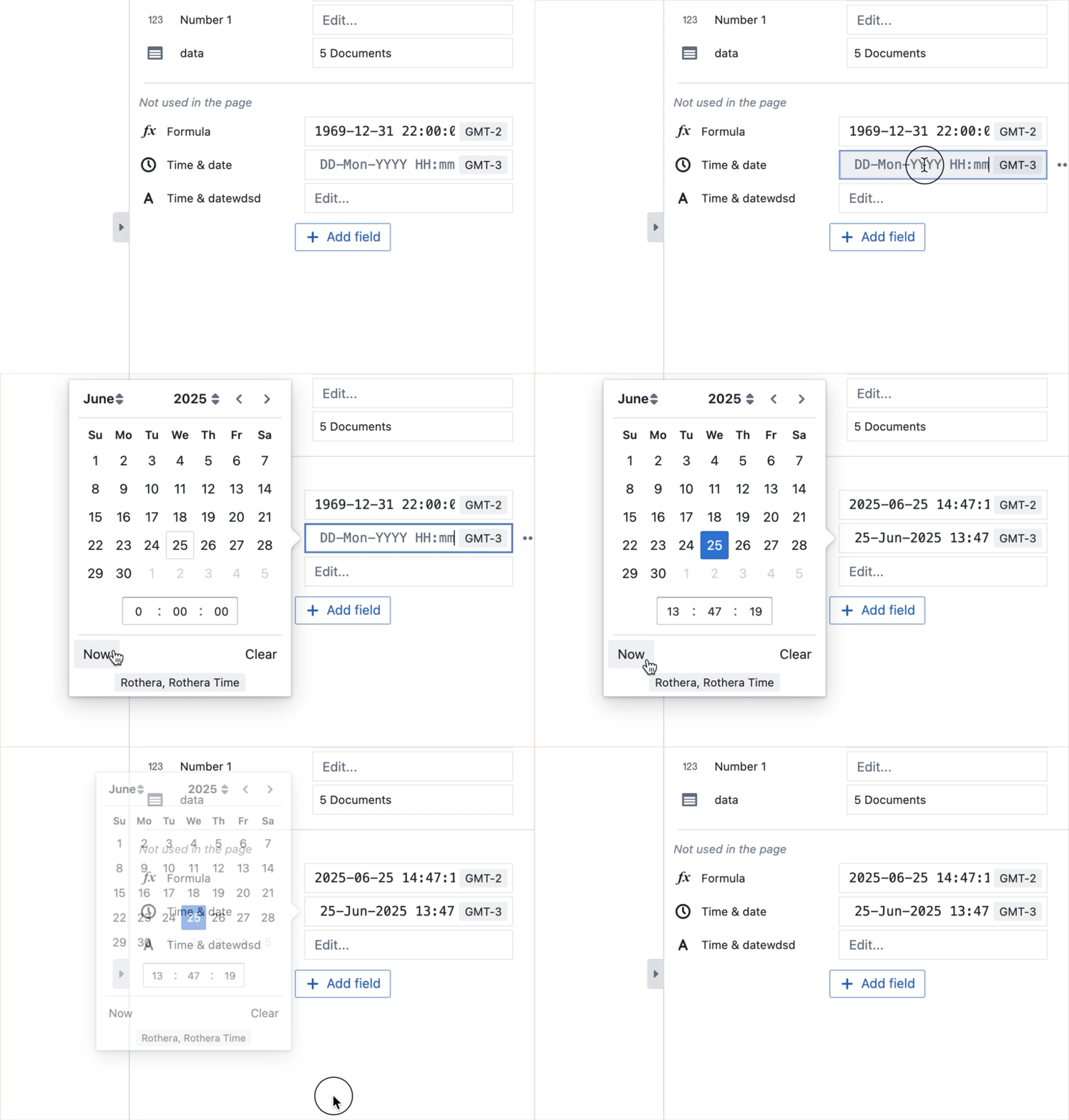
Time & Date fields are displayed in the user’s local timezone by default. To ensure all users see the same timezone, disable “Use user’s local timezone” and select from the dropdown list. Use the search function to quickly find your timezone. The actual timestamp remains consistent and is adjusted according to the selected timezone settings. The chosen timezone will be flagged on the date picker when filling in fields to avoid any confusion.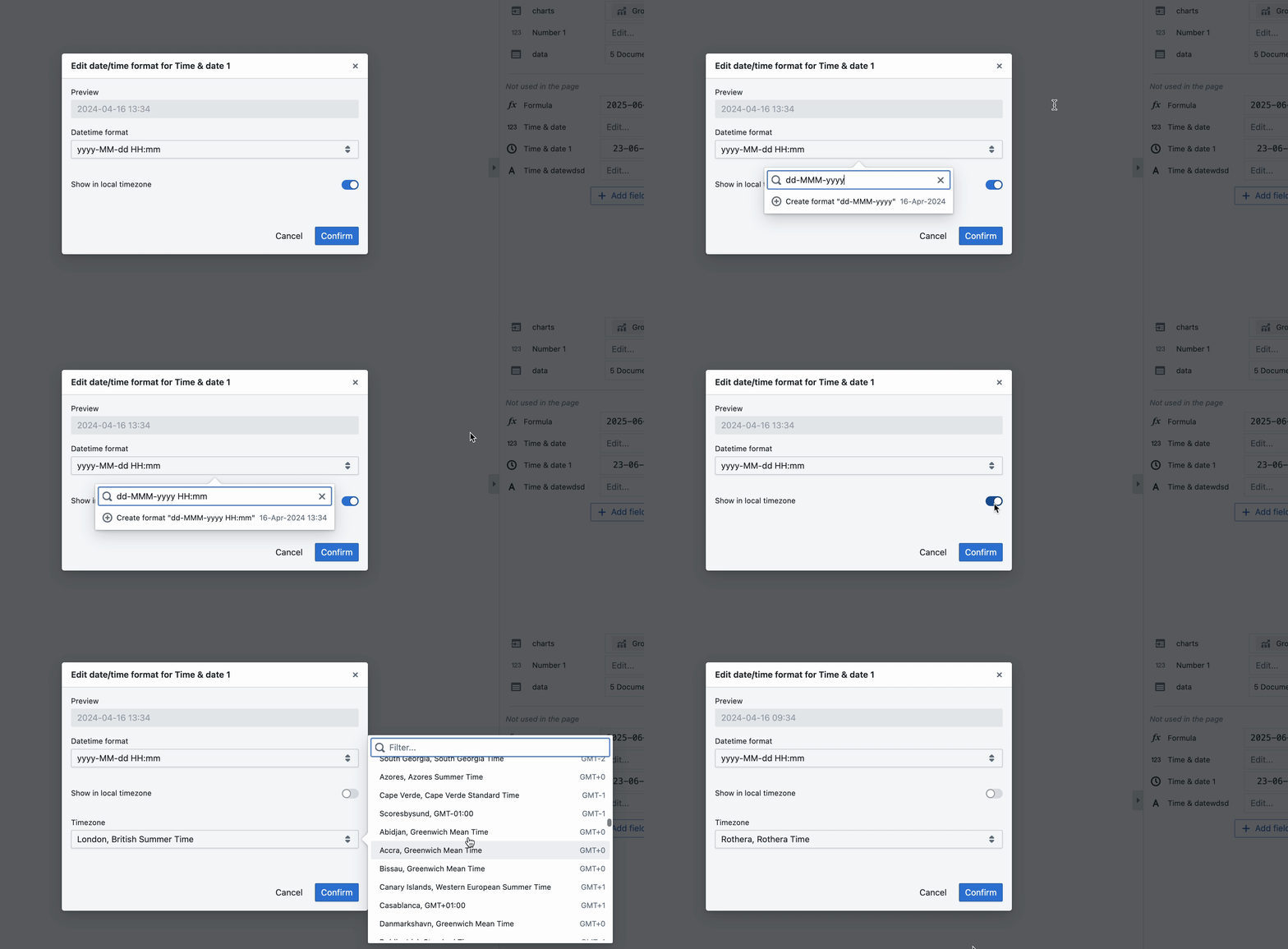
Formulas
Formula fields in Seal enable you to perform calculations across an entity’s fields.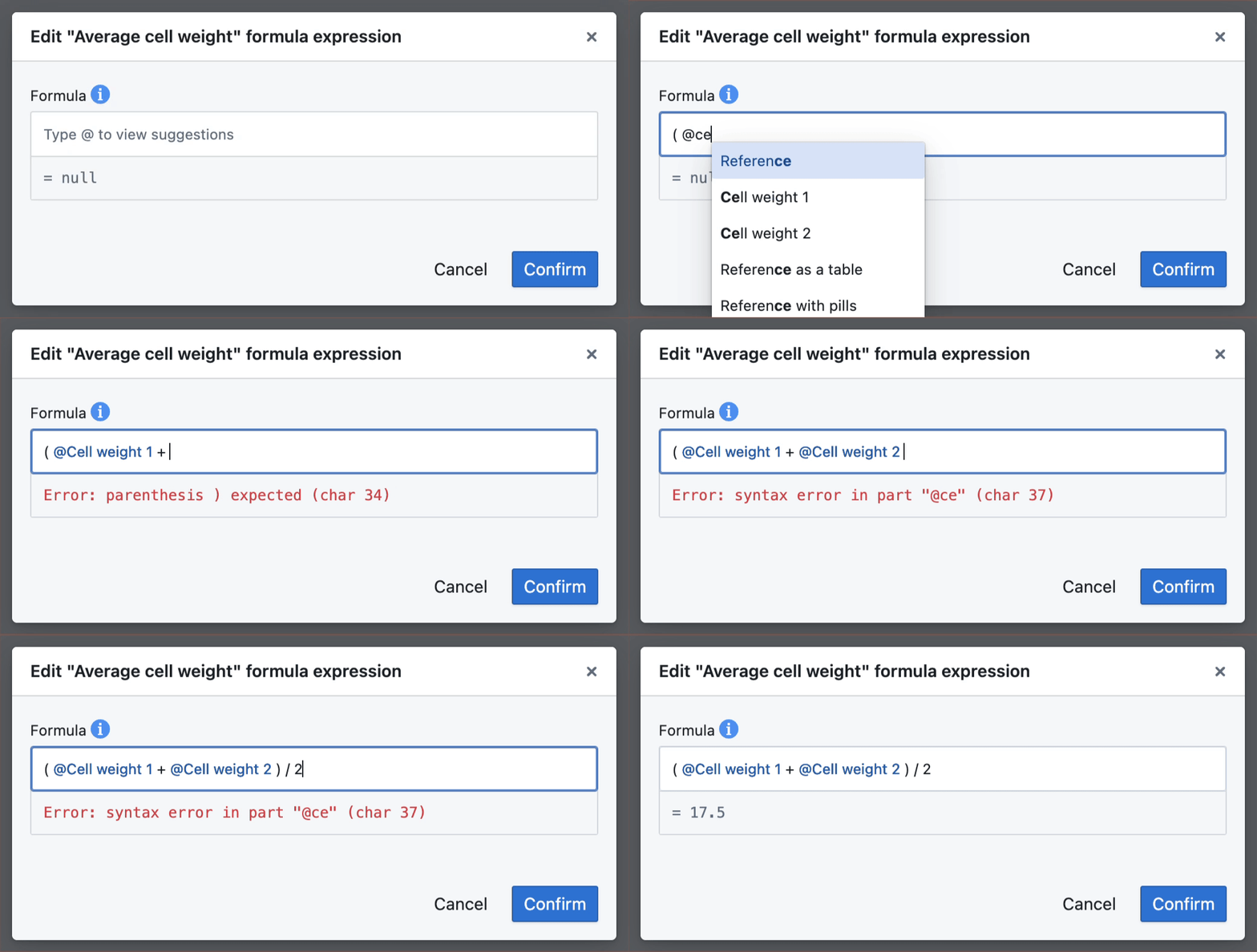
@ symbol in the formula input to see the fields and properties (e.g. CREATED_BY) available to use in the formula expression.
Formula expressions can include the following fields:
- Number
- Text
- Select
- Time & date
- Reference
- Checkbox
- Formula
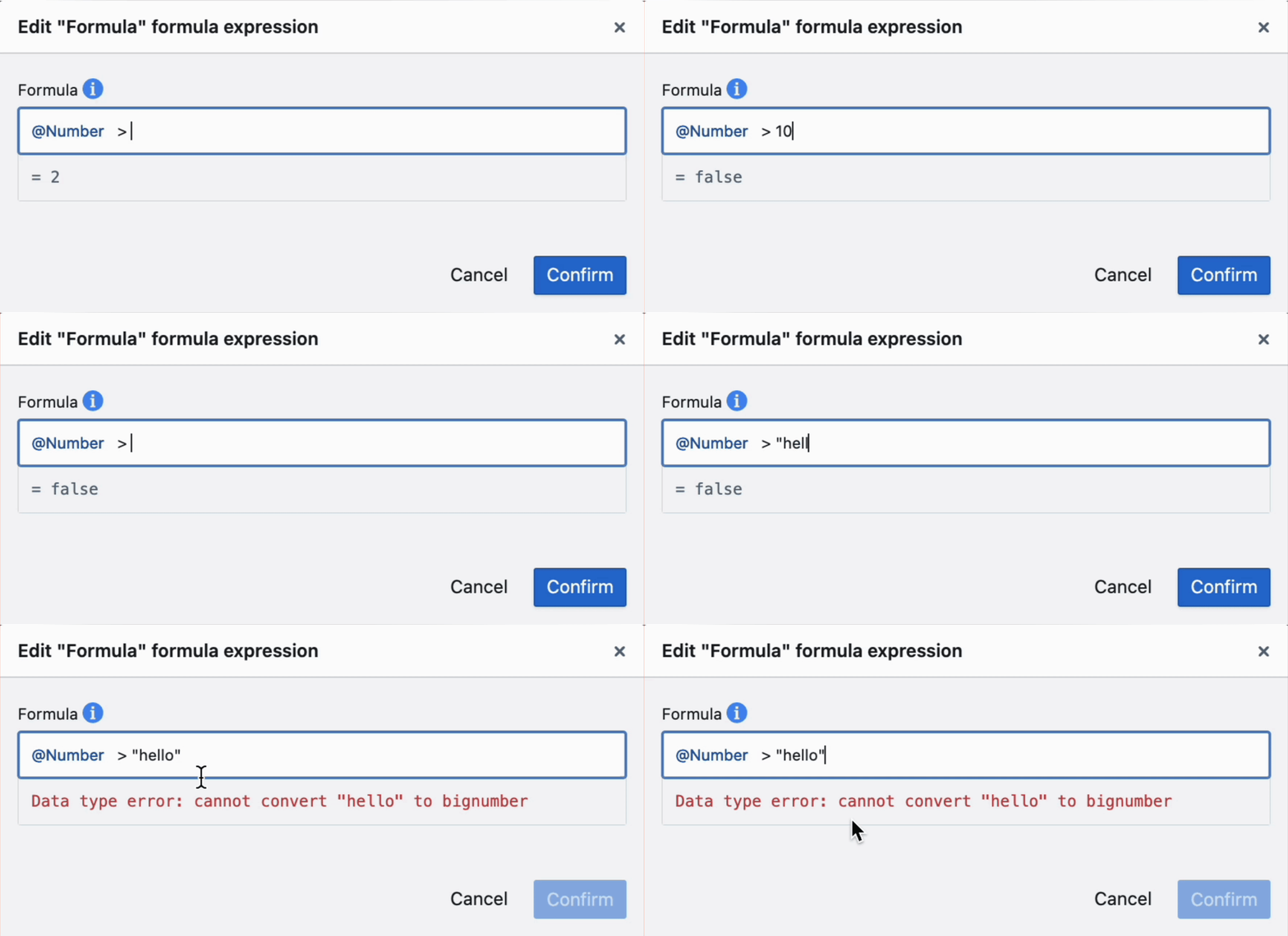
What can I compute with formula fields?Seal’s formula fields cover a wide range of functionality, from simple calculations to complex computing.The underlying library handling the calculations is Math.js. See the table below for examples of common operators and how to use them in your formulas.For a full list, see the Math.js library documentation.
| Formula Language | Data type | Description |
|---|---|---|
+ - / * | Number | Addition, subtraction, division, multiplication |
== | Number | Equal to |
!= | Number | Not equal to |
< > | Less than, greater than | |
<= >= | Less than or equal to, greater than or equal to | |
or(x, y) E.g. or(@Field1 > 5, @Field2 < 10) | Boolean | Logical OR — returns true if either condition is true |
and(x, y) E.g. and(@Field1 > 5, @Field2 < 10) | Boolean | Logical AND — returns true if both conditions are true |
not(x) E.g. not(@Field > 5) | Boolean | Logical NOT — returns true if the condition is false |
concat( @Field1, @Field2 ) eg. concat( string( @quantity), @unit) | Mixed | Concatenate multiple fields in a formula expression. Convert the field to a string using string() if the field types are different. |
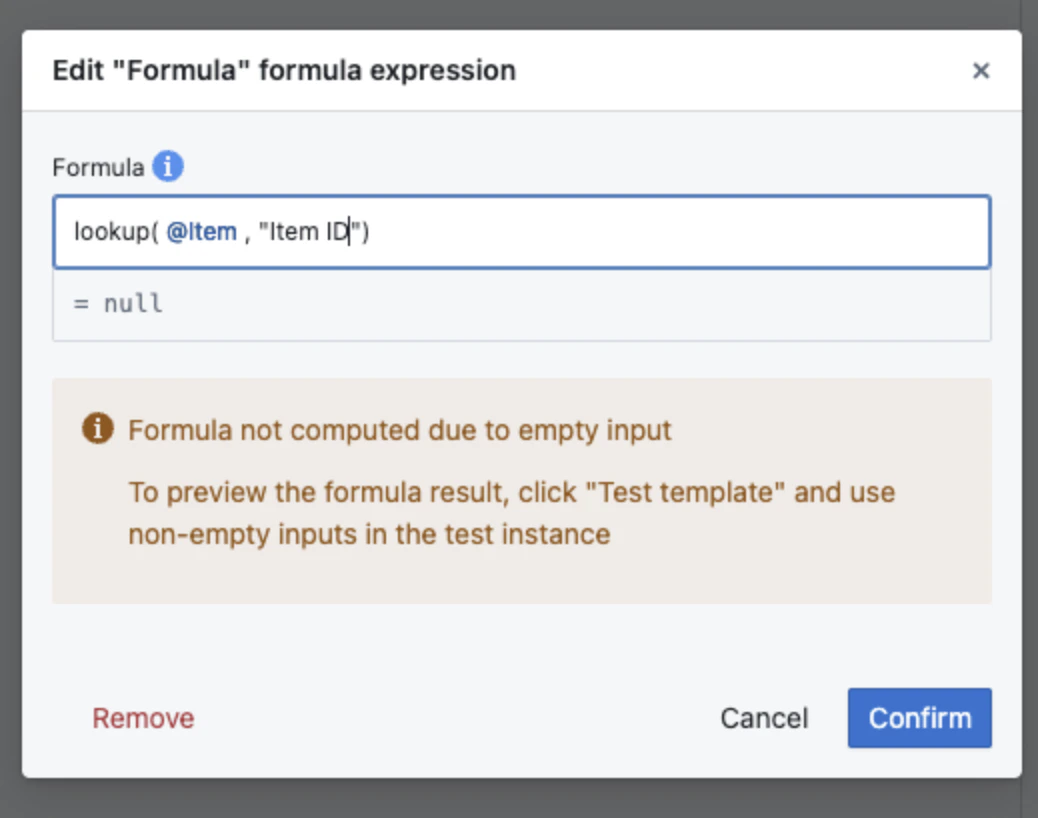
lookup( @referenceField , "Field name") orlookup( @referenceField , "Property") | Entity | Looking up a field in another entity via a reference field. Note that the field name you want to look up must be in quotation marks, e.g. "String". You can look up a multi-value field via a single-value reference — all values will be displayed. 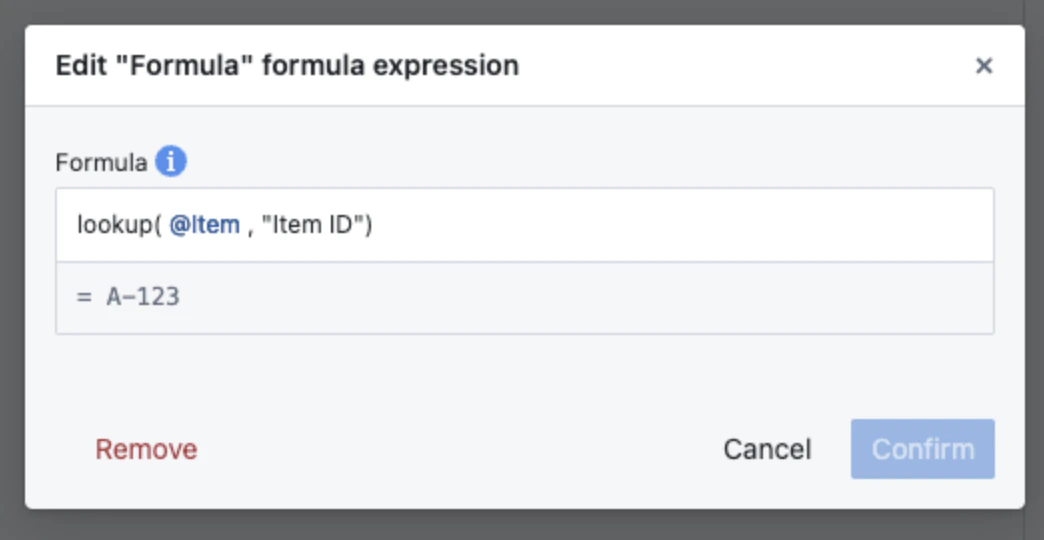 |
dateAdd( @dateField, number, unit) E.g. dateAdd( @dateField, 2, years) or dateAdd( @datetimeField, 1, "years") | Date, Time & Date | Function to add time periods to Date or Time & Date fields. Supported units: 'days', 'months', 'years'. Date inputs return a Date; Time & Date inputs return a Time & Date (preserving time-of-day, calendar-aware so + 1 year is a real year). |
convertToDatetimeField( @datetimeField) E.g. convertToDatetimeField(@datetimeField1 - @datetimeField2) | Time & Date | Function to convert a unix timestamp to a Time & date field. |
formatDatetime(@datetimeField, "format string", "timezone") E.g. formatDatetime(@datetimeField, "yyyy-MM-dd HH:mm", "America/New_York") OR formatDatetime(@dateField, "format string") E.g. formatDatetime(@dateField, "MM-dd-yyyy") | Time & Date, Date | Function to format a Time & date or Date field into a string. Date fields do not have the additional timezone section whereas Time & date fields must have it. The format string must adhere to the rules set out above Refer to the timezone support section below for more information about the timezone string. |
? E.g. (@Field > 3 ? "Large" : "Small" | Mixed | if statements (conditional logic) 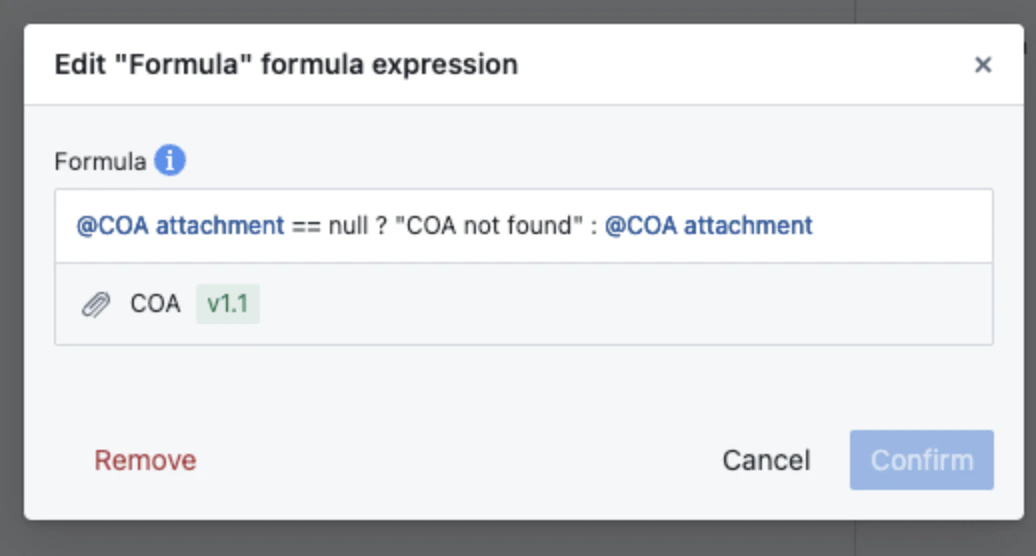 |
compareText( @Field, "text" ) == 0 E.g. compareText( @Status, "Active" ) == 0 | Text, Select | Compare strings for equality. Returns 0 if equal, 1 if first > second, -1 if first < second. Use == 0 to check equality. Works with Text and Select fields (compares the selected option). |
Timezone support
Our platform provides flexible timezone handling by supporting three types of identifiers:- IANA names
- Timezone abbreviations
- Fixed-offset
Etc/GMTcodes
IANA Timezone Names
Using a standard IANA name pins a location to a specific region, the platform will automatically handle changes for Daylight Saving Time, so timestamps are always correct for that location throughout the year. For a complete list, you can visit this comprehensive list of tz database time zones.Common Timezone Codes
Common Timezone Codes
Here is a reference list of some commonly used IANA timezone names
| IANA Timezone Name | UTC Offset (Standard) | UTC Offset (Daylight Savings) |
|---|---|---|
Pacific/Honolulu | -10:00 | -10:00 |
America/Anchorage | -09:00 | -08:00 |
America/Los_Angeles | -08:00 | -07:00 |
America/Vancouver | -08:00 | -07:00 |
America/Denver | -07:00 | -06:00 |
America/Edmonton | -07:00 | -06:00 |
America/Phoenix | -07:00 | -07:00 |
America/Chicago | -06:00 | -05:00 |
America/Regina | -06:00 | -06:00 |
America/Winnipeg | -06:00 | -05:00 |
America/Halifax | -04:00 | -03:00 |
America/St_Johns | -03:30 | -02:30 |
America/Fortaleza | -03:00 | -03:00 |
Europe/London | +00:00 | +01:00 |
Africa/Lagos | +01:00 | +01:00 |
Europe/Brussels | +01:00 | +02:00 |
Europe/Athens | +02:00 | +03:00 |
Asia/Istanbul | +03:00 | +03:00 |
Asia/Dubai | +04:00 | +04:00 |
Asia/Kolkata | +05:30 | +05:30 |
Asia/Bangkok | +07:00 | +07:00 |
Asia/Manila | +08:00 | +08:00 |
Asia/Shanghai | +08:00 | +08:00 |
Asia/Singapore | +08:00 | +08:00 |
Asia/Seoul | +09:00 | +09:00 |
Fixed UTC offset timezones
If you require a timezone with a static UTC offset that does not change during the year, you can use either a timezone abbreviation or anEtc/GMTcode .
The Etc/GMT format is a more explicit way to define a fixed offset.
Important Note: The Etc/GMT notation uses a POSIX-style sign, which is the reverse of what is commonly expected.
Etc/GMT-Xcorresponds to UTC+X. For example,Etc/GMT-10is 10 hours ahead of UTC.Etc/GMT+Xcorresponds to UTC-X. For example,Etc/GMT+5is 5 hours behind UTC.
Setting out of specifications
Use
field.warning in a per-field formula for new work. Per-field formulas expose field.warning = "..." (or True / False) which auto-clears on every successful run, supports rich messages, and lives in the same authoring surface as the rest of the formula. The legacy out-of-spec expression described below can no longer be created — existing ones are view-only on both templates and instances, and the field’s three-dot menu offers Migrate to v2 formula as the only forward-going change (see Migrating legacy formulas).true or false .
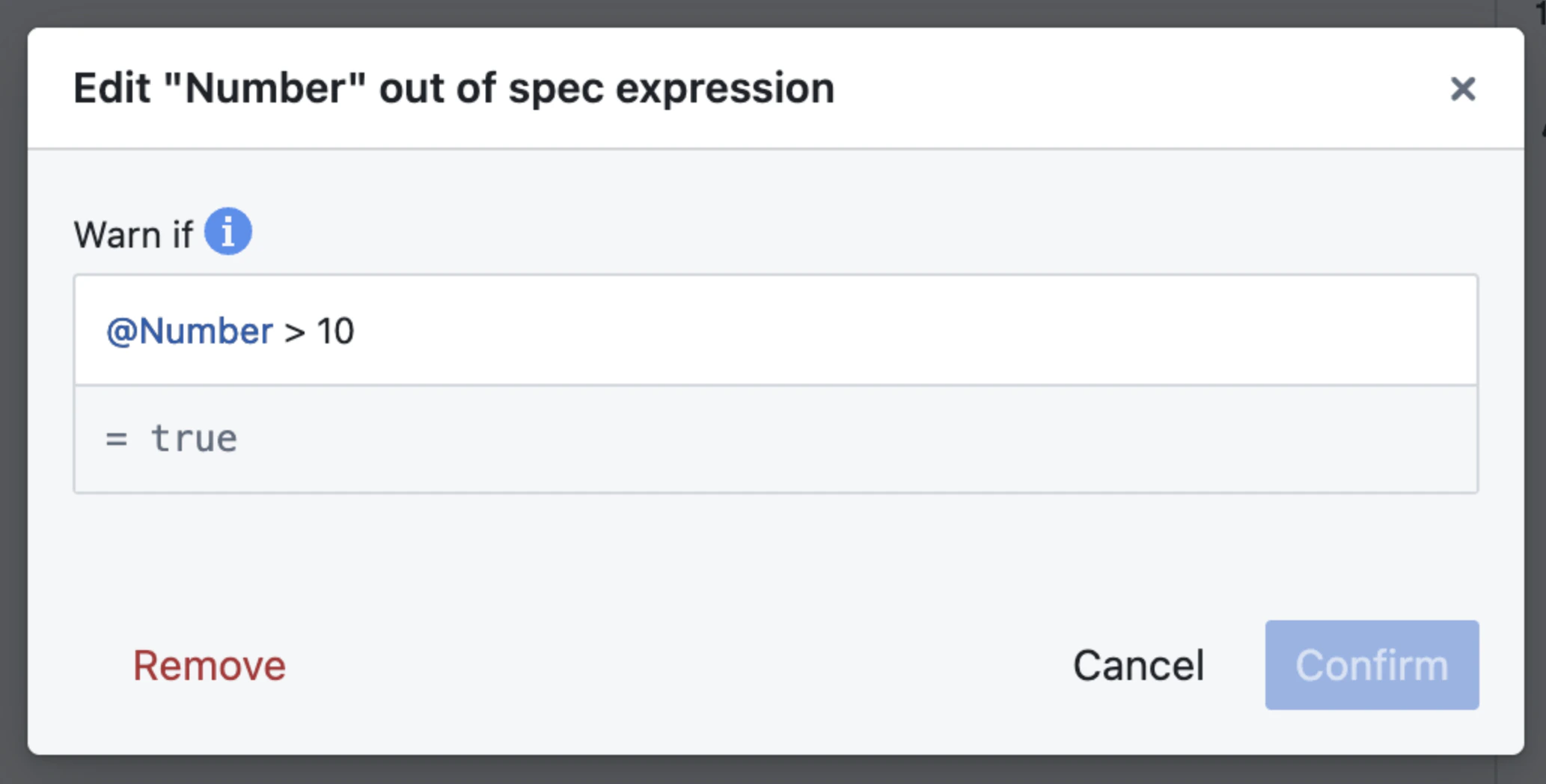
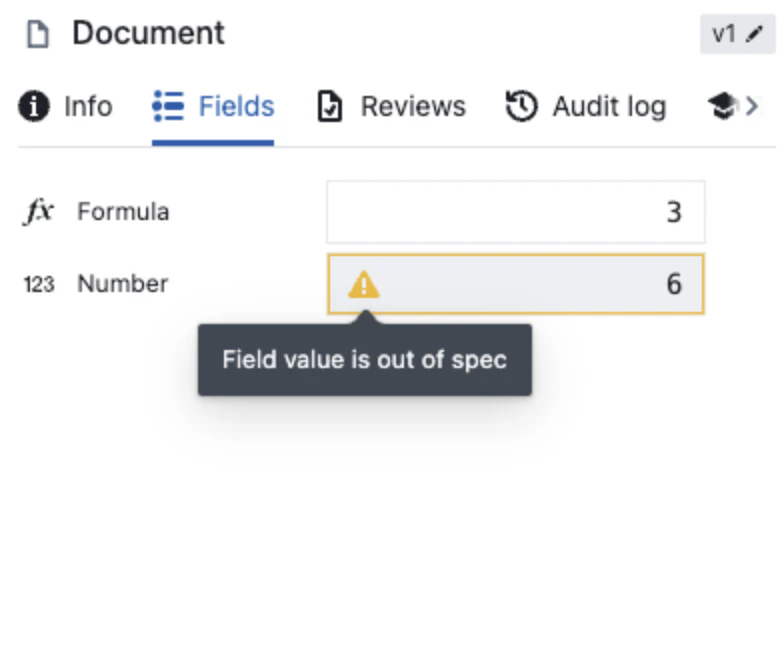
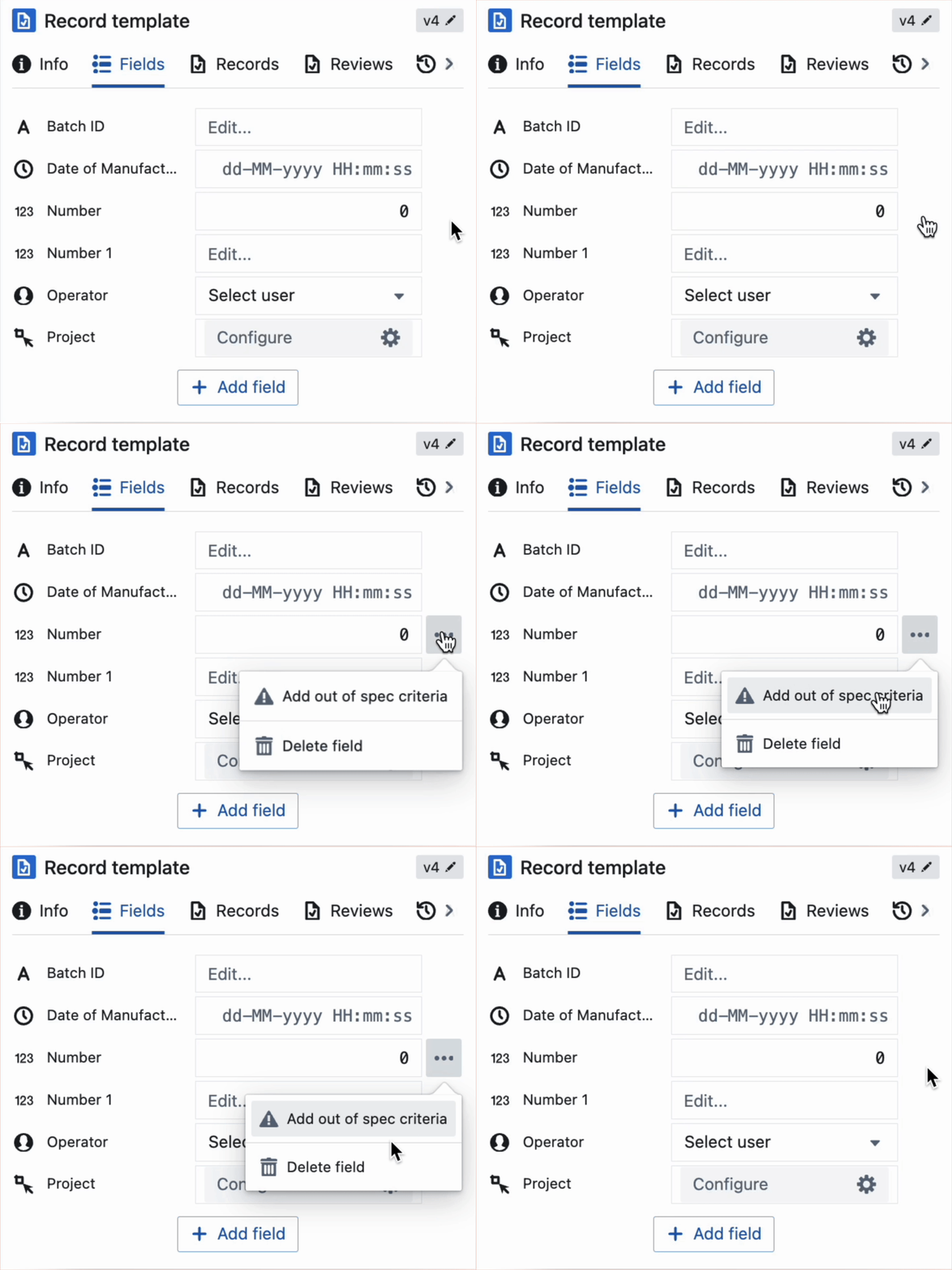
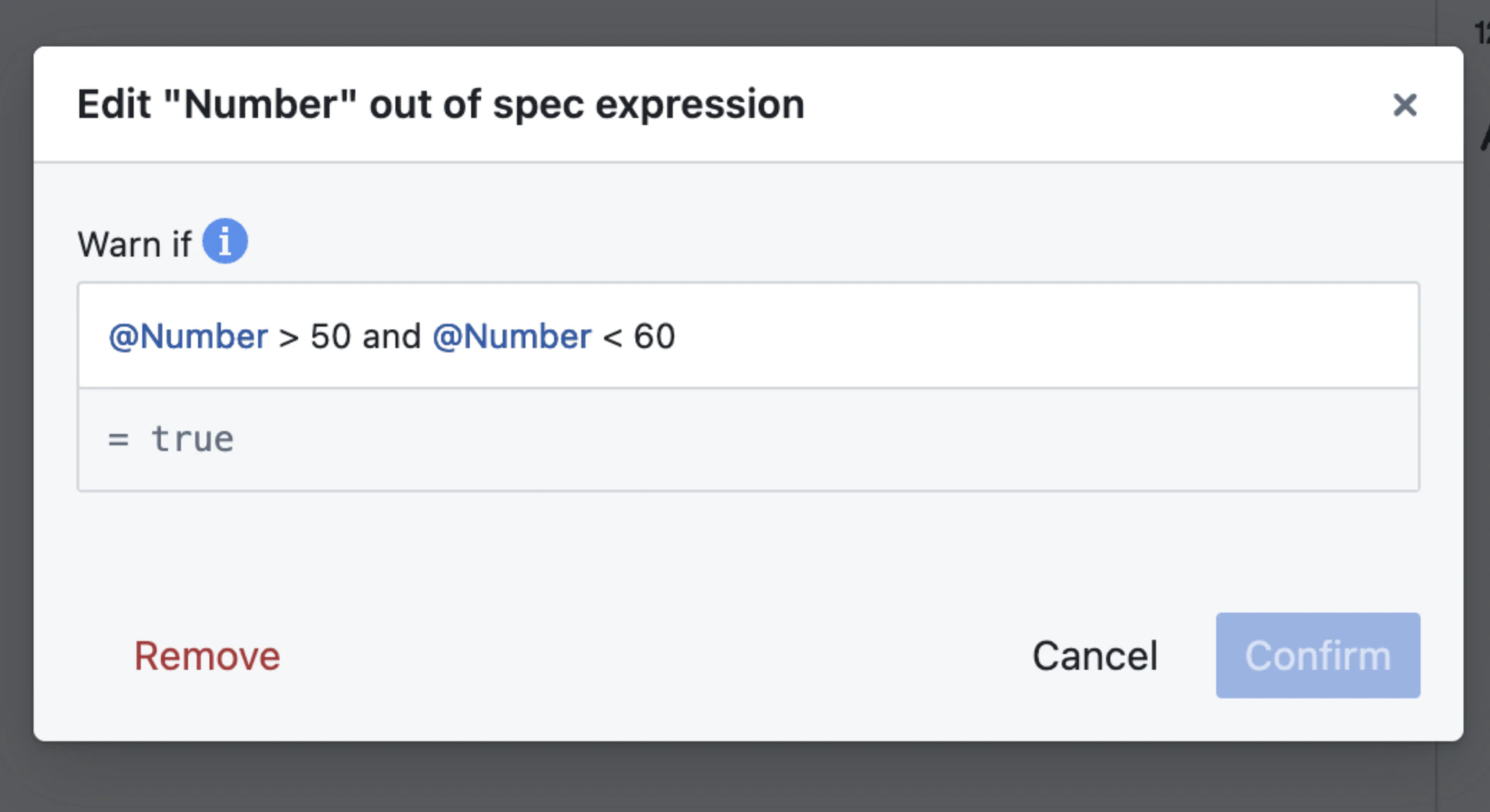
@ symbol to see available field value suggestions.
Reference the field value that you want to validate against any condition using the operators available in Seal’s formula language.
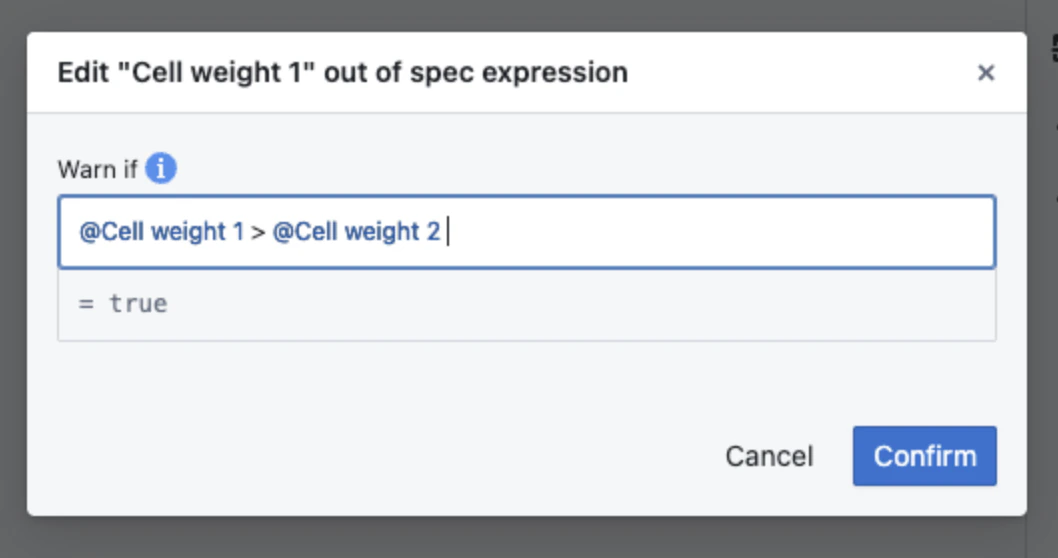
Out-of-Spec Expression Additions
The out-of-spec (OOS) expression extends the capabilities of the standard formula language. This section outlines specific operators and techniques unique to OOS within the formula language framework.| Operators | Data Type | Description |
|---|---|---|
| now() | - | The current date and time |
@Field == true E.g. @Cell checked == true | Checkbox | If the field is checked |
@Field == false E.g. @Cell checked == false | Checkbox | If the field is unchecked |
@Field == null E.g. @Number == null | Any | If the field is blank |
Reference fields
Reference fields allow you to link to other entities in Seal. You can link to existing entities or create new entities directly into the field.Version options
When selecting a reference, you can choose which version of an entity to reference.| Entity Kind | Version Options |
|---|---|
| Templates | Can reference a pinned version (e.g. v1, v2) or the Active version (always points to the current active version) |
| Instances | By default, can only reference pinned versions. Active version references from templates get pinned when the instance is created. |
Allowing active version references in instances
A type setting called “Allow active version references” changes this behavior for instances:- When off (default): Instances can only reference pinned versions. If a template references “Active version”, this gets resolved to the current active version when the instance is created.
- When on: Instances can also select “Active version” in reference pickers. Template references to “Active version” remain as “Active version” in the instance.
This setting is configured in the Type’s Instance Settings.
Draft references
In templates and draft instances, you can reference draft entities. These draft references get pinned to the newly published version when the referenced entity is published.Reference field configuration:
On reference fields, you can configure how the reference behaves as well as what can be referenced.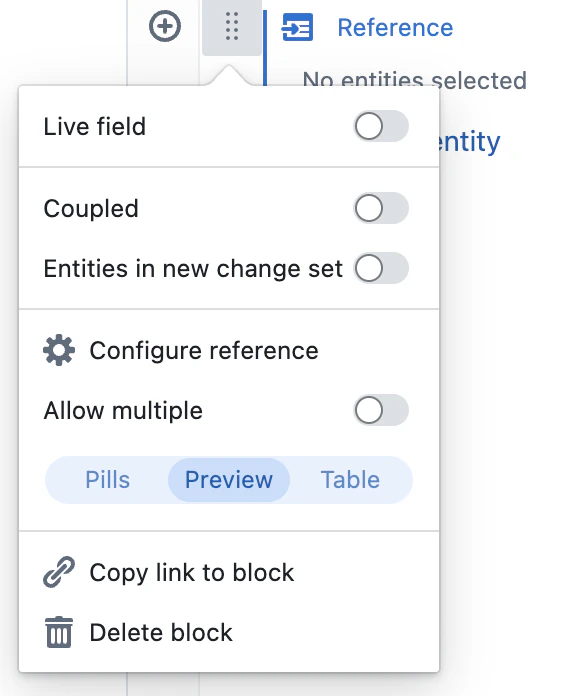
Coupled lifecycle
If a reference field uses Coupled lifecycle, entities in that field are managed with the containing entity:- Placeholders in templates - in a template, you cannot reference existing entities. Instead you can add placeholders into the reference fields. When the template is instantiated, these placeholders create new instances that are referenced by the containing instance. Learn more about placeholders below.
- Cascading drafts - drafts cascade in both directions through coupled reference fields:
- Referenced entity → containing entity: if you make a draft of a referenced entity, the containing entity is also put into draft. The reference field in the containing entity now points to the new draft.
- Containing template → referenced entities: if you make a draft of a template or placeholder, all coupled entities in the field are also put into draft so that the reference tables are immediately editable.
- Cascading archiving - if the containing entity is archived, any coupled entities in the field are also archived.
Separate change sets
If Separate change sets is on, entities created through the reference field start in their own change sets. By default, they are created in the same change set as the containing entity.Configure reference
The configure reference modal allows you to select which entities can be referenced, as opposed to how the reference behaves. For independent reference fields, the modal allows you to filter down what entities can be added to the field using a query string. ‘Limit references to pinned versions’ means that users will not be able to reference the ‘Active version’ in instances.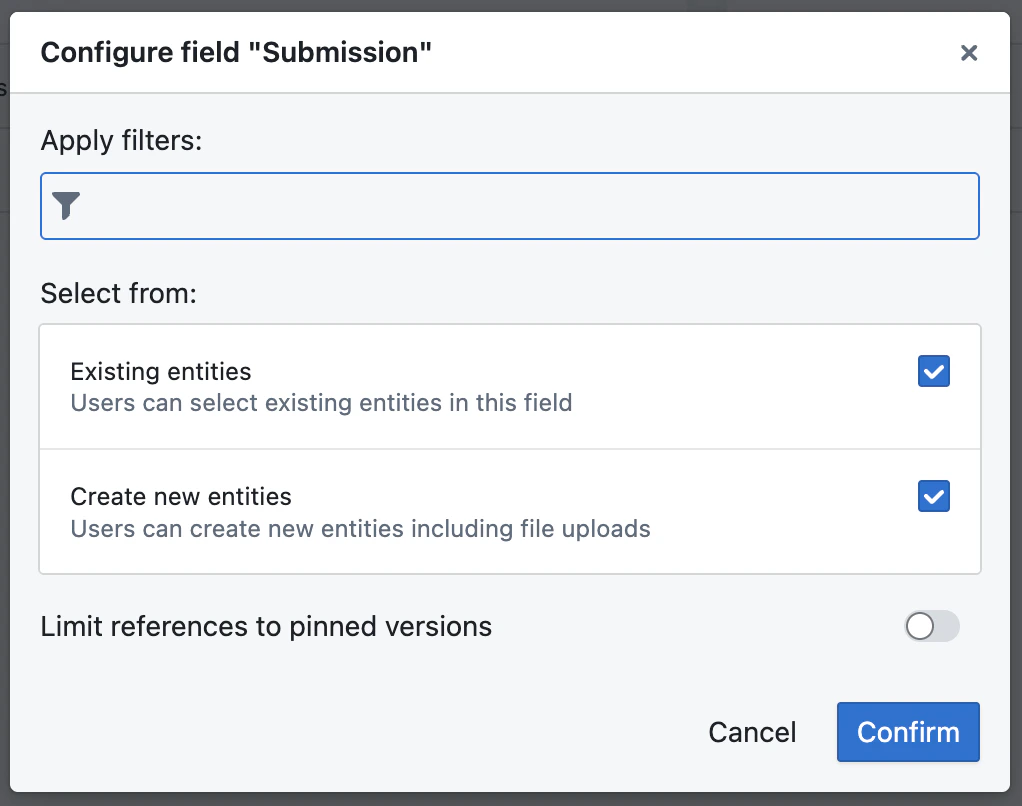
Display mode
Choose between pills, preview or table to display the referenced entities. When in ‘preview’ mode, draft entities in other change sets can be published / sent for review directly from the containing entities page.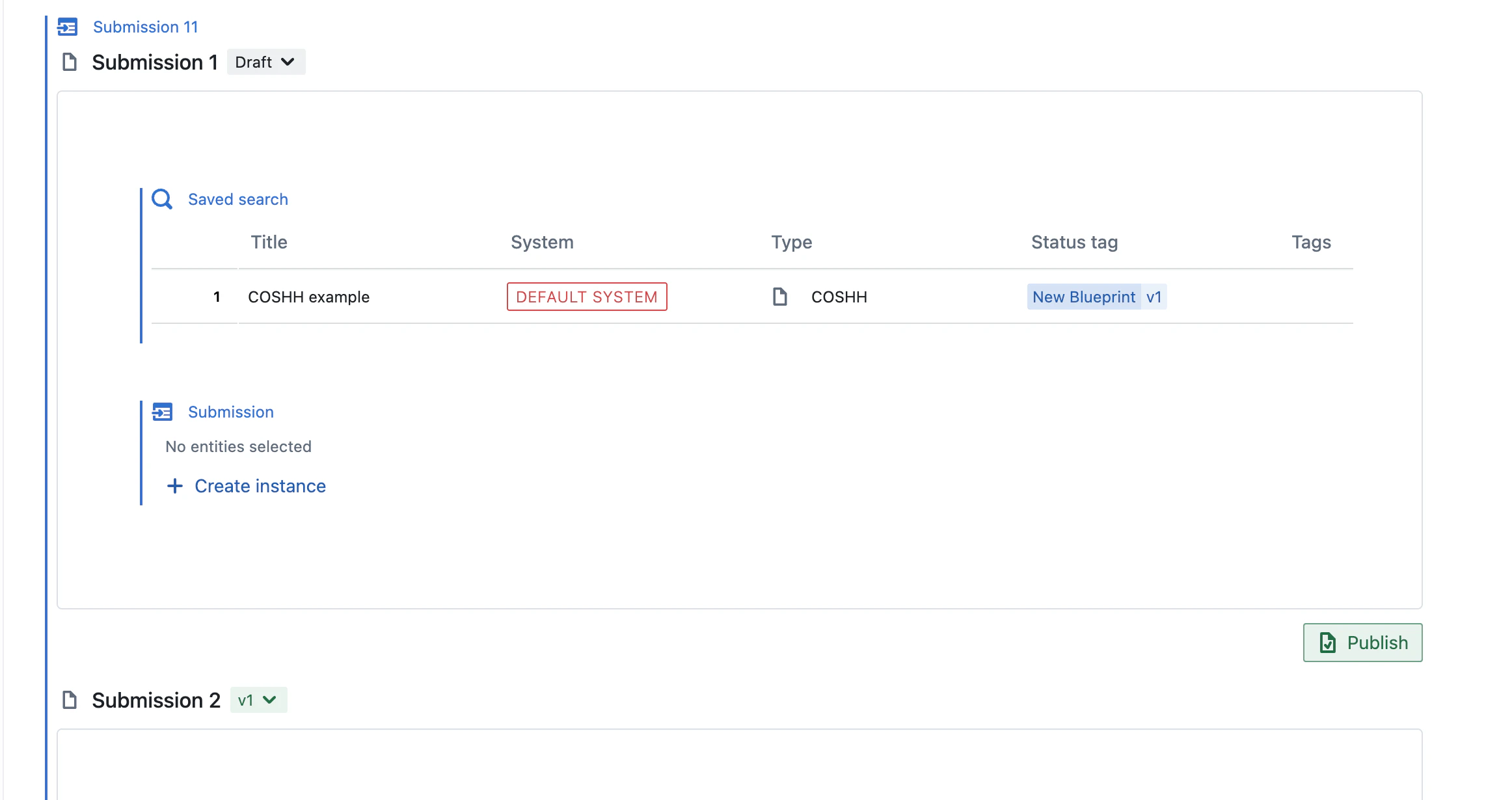
Placeholders
When Coupled lifecycle is enabled on a template, the field creates placeholder entities instead of referencing existing ones. These placeholders are hidden from search by default. For reference fields configured to the ‘Active version’ of a template, these placeholders are ‘attached’ to their source template. This means that, when the active version of that template updates:- The placeholders inherit content and field configuration from the template’s active version.
- Only field values can be customized.
- To edit content, field configuration you must detach the placeholder
- Once detached, the placeholder is pinned to a specific template version and no longer receives updates
- Detach from the placeholder’s from the banner on an attached entity
Example use cases
Data submissions
Consider a Batch Record that needs to capture process parameters like Temperature, pH, and Dissolved Oxygen:- Create a Reference field called “Process Parameters” on your Batch Record template
- Enable “Coupled lifecycle” in the field menu
- Configure the field to point to a “Parameter” template (with fields like Target Range and Actual Value)
- Add placeholder rows for each parameter
Work instructions
Consider a Process with steps that are executed and signed off at different times:- Create a Reference field called “Steps” with “Coupled lifecycle” enabled
- Enable “Separate change sets” — this gives each step its own change set
- Add placeholder steps on the Process template
- Each Step becomes its own instance with its own change set
- Operators complete steps in sequence
- Each step can be approved and published independently
- The Process can remain a draft while individual steps are published
Configuration set up examples
| Option | Description | Document reference | Data submission | Work instruction |
|---|---|---|---|---|
| Coupled lifecycle | Manages referenced entities with the containing entity | False | True | True |
| Separate change sets | Each created entity gets its own change set | False | False | True |
| Display mode | Choose between Table, File Preview, or Pills | Pills | Table | Preview |
| Allow multiple | Allow multiple entities in the field | True | True | False |
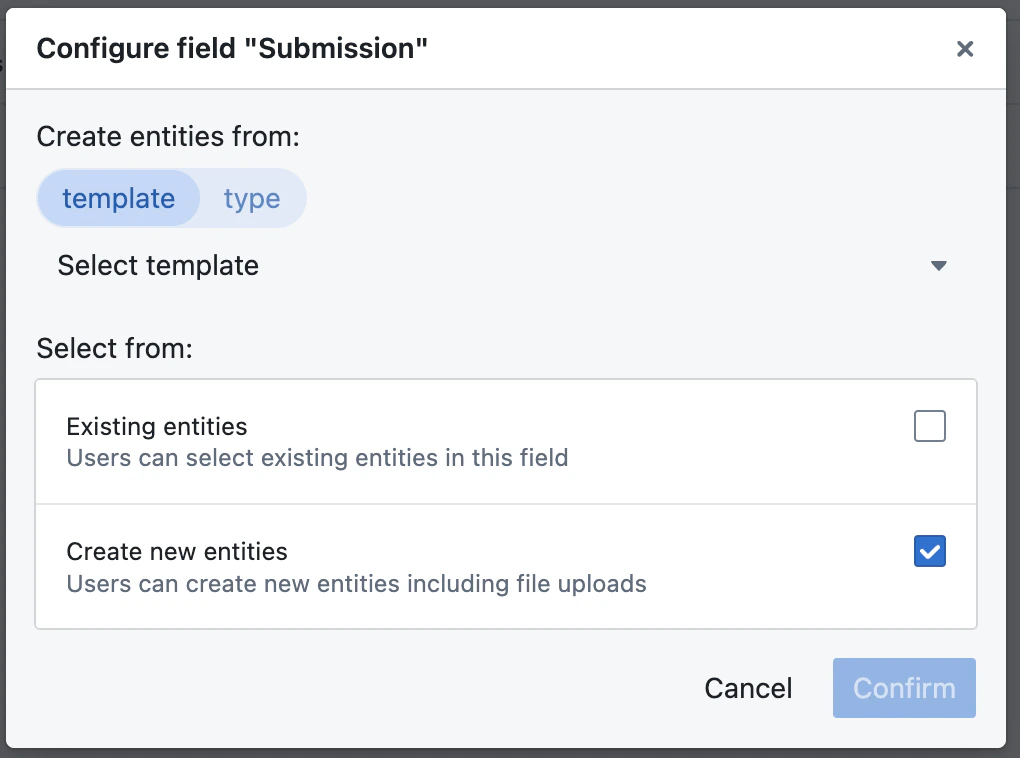
When configuring a coupled reference field, you must select a template or type that the entities will be created from.
Adding columns to Reference Fields
You can add columns directly into a Reference field table. Doing so will add that as a field to all existing and future entities in the submission field. You are also able to configure these fields directly from the column in the table. Adding these columns to the table does not affect or add them to the template configured in the reference field, only the instances made within that particular field.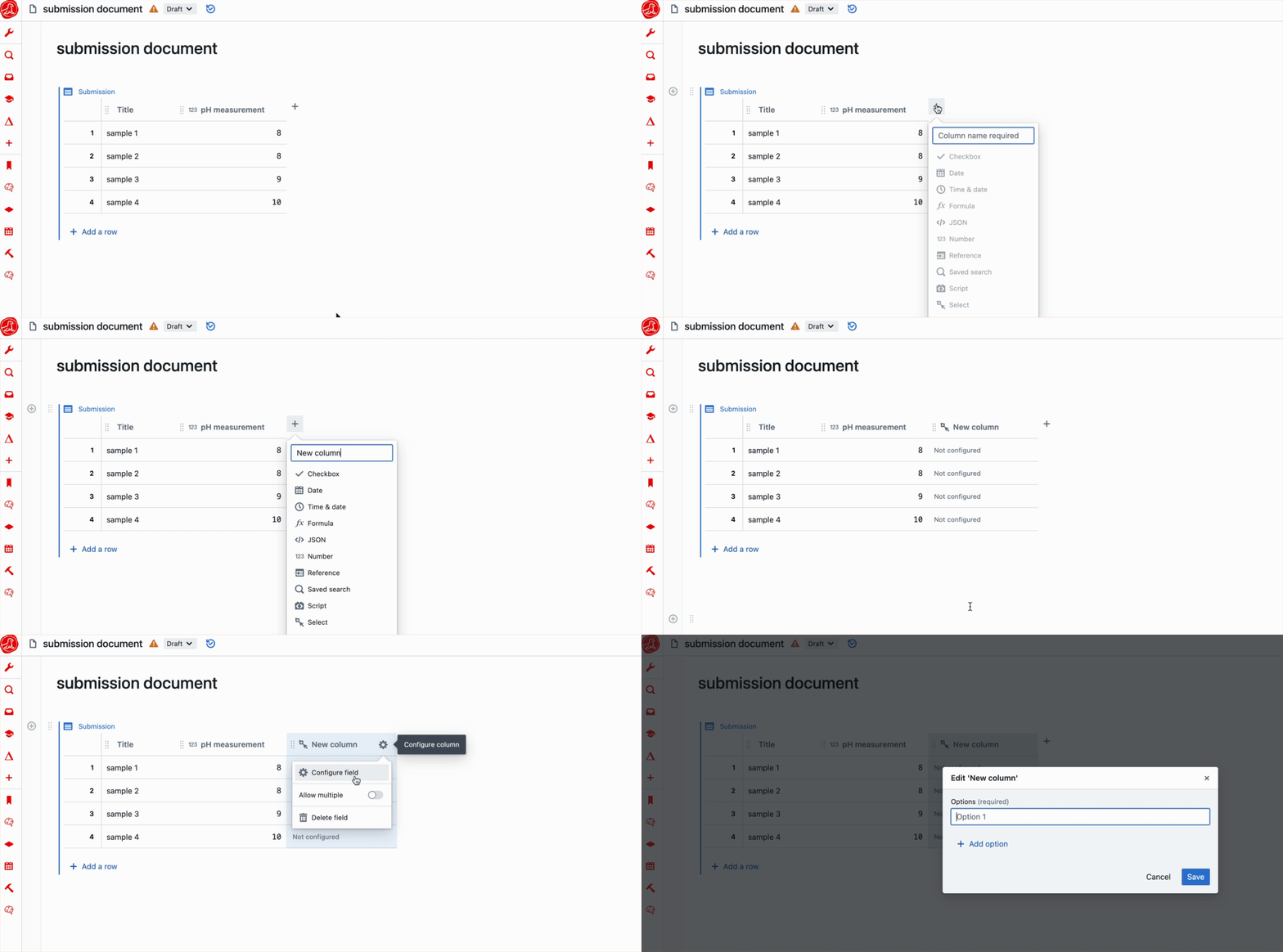
Note:
- This cannot be done if any entities in the reference are non-editable (published or in review)
- This cannot be done if the reference field contains an attached placeholder
Saved search fields
Saved search fields allow you to render query results within an entity with page content. You may use the same filter language as on the query page. This query then gets saved on publish. The query results will remain live even after your entity is published.Creating a Saved Search Field
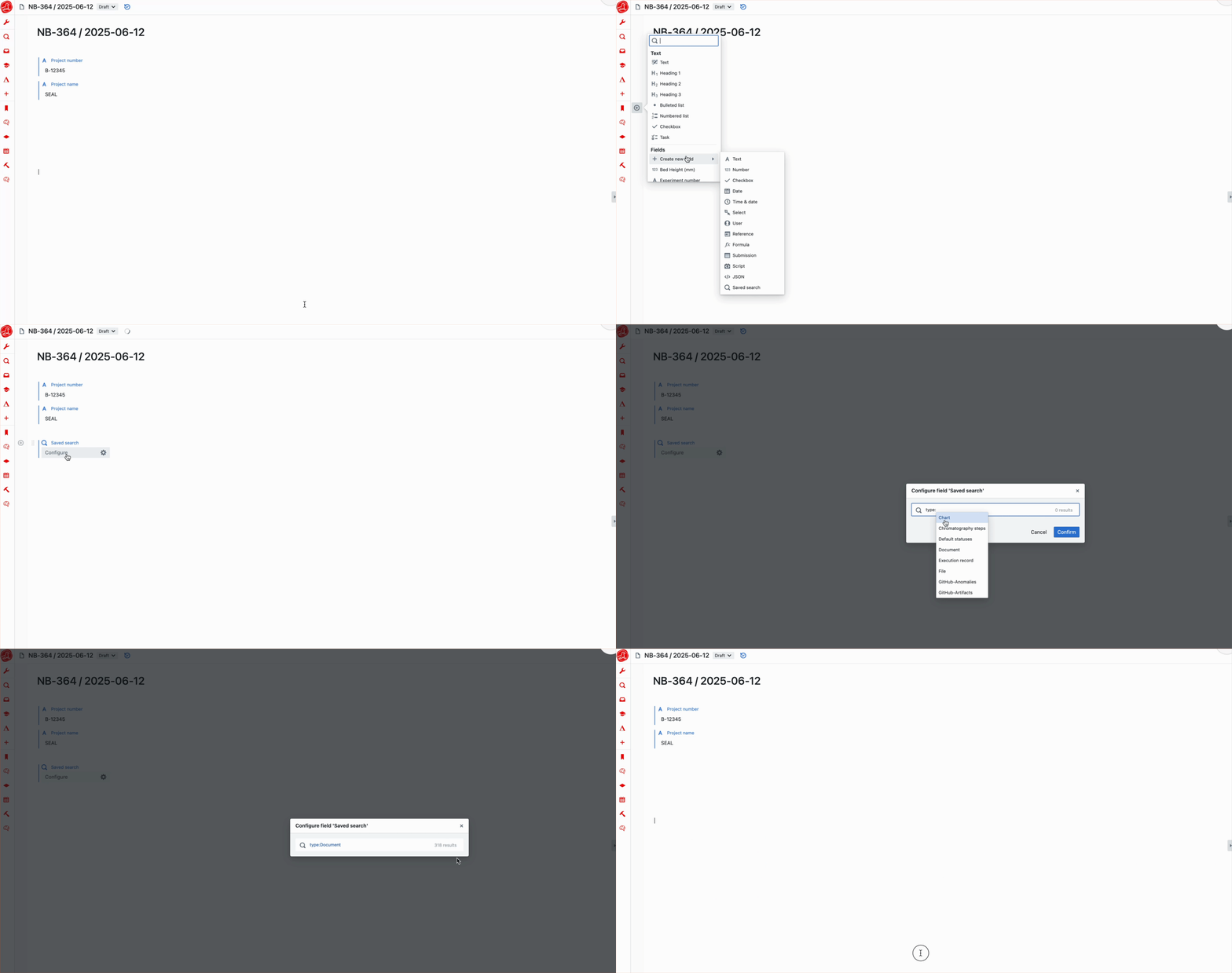
Filtering by a Reference Field
It is possible to create a filter to only show entities that reference the entity you are on. This screenshot shows a saved search field filtered to show entities that reference the containing entity.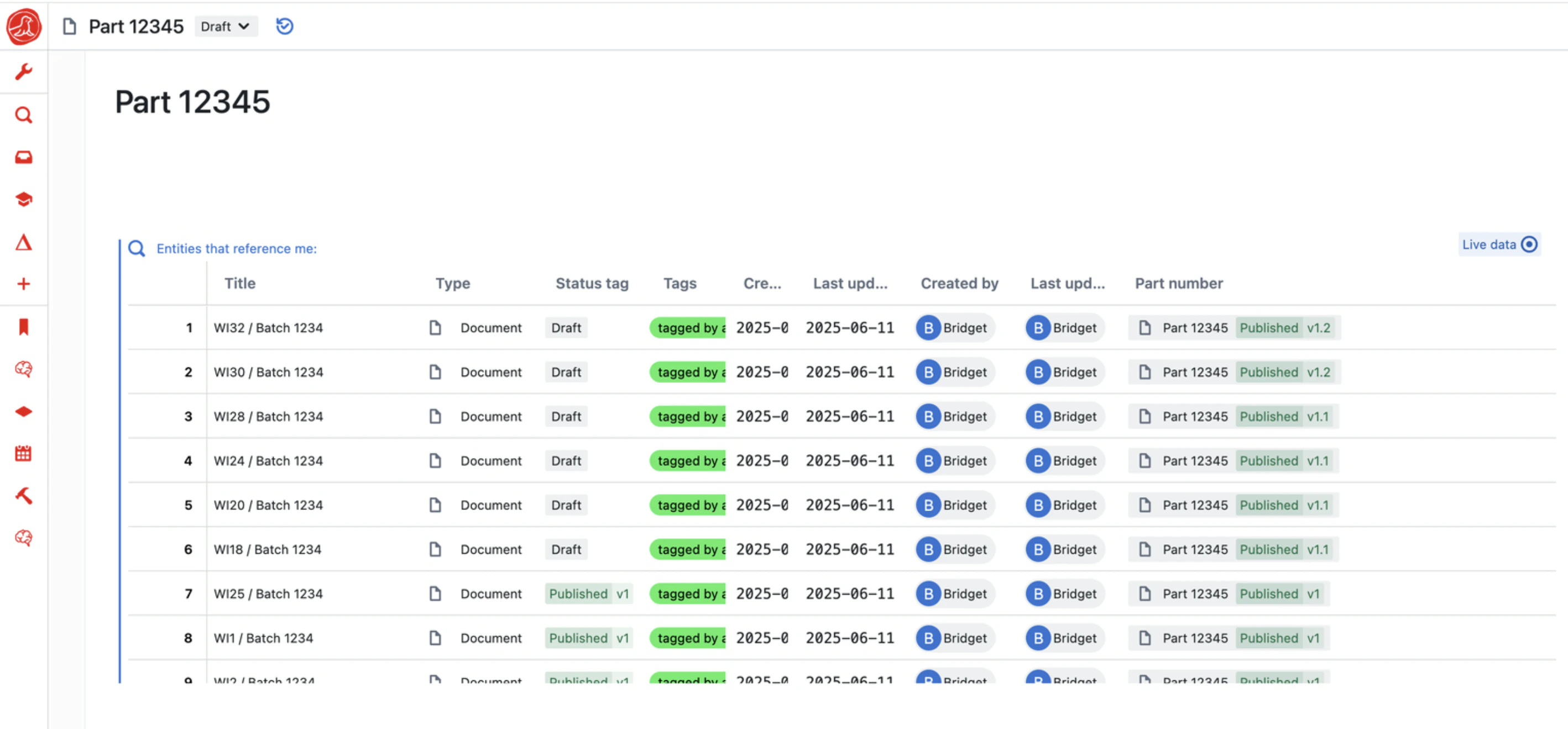
- To create a filter like this, use the standard filtering syntax:
field:"Field name"="Field value" - For reference fields, the pattern goes
field:Reference=ref(entity_id,version)- The version after the comma is optional, if you include it, it will show you all entities that reference that entity at that specific version.
- If you do not include the version, it will show you all entities that reference any version of the entity,
- In the saved search field config, find the containing entity’s ID using
@ID- In the example above therefore, the config is:
field:"Part number"=ref(@ID) - This returns a list of all entities that have a reference field called “Part number” that references this specific entity: “Part 12345”
- Note there is no version included, as the table is showing entities that reference all versions of the part.
- In the example above therefore, the config is:
Using field values in filters
You can reference field values from the containing entity using@"Field Name". This works in both saved search fields and reference field query filters.
- Use
@"Field Name"to insert a field’s value into your filter - The field value is resolved dynamically when the search runs
Field presets
Field presets allow you to save and reuse common field configurations. Instead of manually configuring the same settings each time, you can select a preset when adding a new field.Default presets
Seal includes two default Reference field presets:| Preset | Description | Configuration |
|---|---|---|
| Submission | For embedding data tables that publish with the containing entity | Placeholders/Coupled lifecycle enabled, Table display, Same change set |
| Step | For work instruction steps with independent approval | Placeholders/Coupled lifecycle enabled, File Preview display, Separate change sets |
Using a Preset
When adding a new field, presets appear alongside the standard field types. Selecting a preset creates a field with all the preset’s settings pre-configured.After creating a field from a preset, you can still modify its settings as needed. The preset provides a starting configuration.
Custom presets
Administrators can create custom presets for each system in their organization. This is useful when your team frequently creates fields with the same configuration. Custom presets are managed in the system settings.Migrate entities
Add or update fields and instance settings across multiple entities at once, based on a query.- Supports all field types: set the configuration and values across all entities.
- New fields are created on entities that don’t have them. Existing fields are updated to match the specified value and configuration.
- Rename fields: rename fields across all matching entities. Entities where the target name already exists are blocked. Formula and automation references are updated automatically.
- Instance config settings: update strict mode, hide version number, enforce unique titles, limit references to pinned versions, and computed titles in bulk.
- Published entities are automatically drafted into a shared change set named “Entity migration”. Draft entities are updated in place.
- Blocked entities are skipped. Entities in review or validation, strict mode instances, and entities with field type clashes or rename conflicts cannot be migrated.
- Limited to 250 entities per migration
- After migration, new field columns are added to your query results table automatically. Renamed field columns are updated in place.
Example: migrate all existing “Materials” reference fields to table mode and filter by the Material template